Call Blocking & Identification: missing switches and failed loads
You installed a call blocker, the app says it is ready, and its switch is not in Settings. Or it was there yesterday and is off this morning. They need different checks: whether iOS shows and enables the extension, and whether the app successfully updates its number list.
For a Call Directory app, check Settings → Apps → Phone → Call Blocking & Identification first. A missing switch can be an installation or registration issue. If the switch is on but a new rule does not work, check whether the app successfully updated its list and whether the caller's number matches. A failed update alone does not explain a switch turning off. Apple documents disabled extensions and loading errors separately.
This guide covers iOS 26. We make CallBlocker, an iPhone and iPad app that uses this same Apple mechanism, and use Apple's documented extension states and errors below. Suggested recovery steps are checks to try, not guaranteed fixes.
Enabling the extension and updating its list are separate steps.
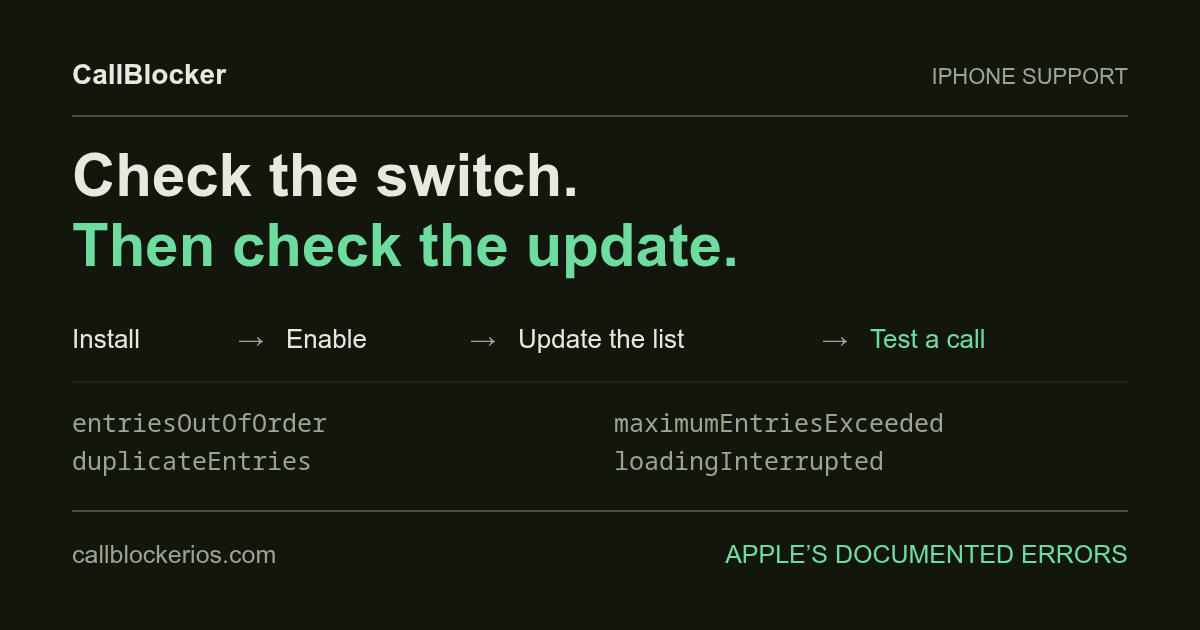
When an app wants to block or label callers, it ships a Call Directory app extension. The extension supplies numbers for iOS to use when calls arrive; it does not run the app on each incoming call. See Apple's Call Directory documentation.
There are two useful checks:
- Your block list is a snapshot. Numbers you add in an app do nothing until the app asks iOS to reload the extension and that reload succeeds.
- A failed update is not proof of current coverage. Do not assume a newly added rule is active until the update succeeds. Apple also supports incremental requests, so not every app rebuilds its entire list on each update.
An app can query whether its extension is enabled separately from requesting a list reload. An "enabled" message therefore does not prove that the latest rule update succeeded. Look for the app's update result or error message as well as the Settings switch.
If the switch is missing, check installation and registration.
The extension must be installed and registered before iOS can offer its switch. Try these checks:
- You have not opened the app yet. Open it once and let it finish launching.
- Registration is still pending. Vendors who ship these extensions describe a delay after installing or updating — often under an hour, occasionally far longer. One published example is Hiya's support note on missing toggles, which reports rare cases of 24 to 48 hours. That is a third-party observation, not an Apple specification.
- You are in the wrong place. The path is Settings → Apps → Phone → Call Blocking & Identification. It is not under the app's own settings row.
- The install did not complete. Check that installation or the app update has completed before trying a restart.
If the switch is still absent after a restart and a full day, reinstalling the app is the reasonable next step. Note that reinstalling usually discards the app's local block list unless the app syncs it.
If the switch will not stay on, record the error.
iOS can reject a list for duplicate entries, incorrect ordering or too many entries. Apple also documents interrupted loads and disabled extensions. These are distinct error states: its public reference does not say that a rejected list automatically turns the Settings switch off.
If the switch stops staying on after an update or a large import, report the sequence to the app's support team. Include any error and roughly how many rules you added. The timing is useful evidence, but does not establish the cause.
A related symptom: the switch stays on and the blocking is simply stale. An unfinished or failed update is one possible cause; a number outside the active rules is another. Confirm the app reports a completed update, then check the exact number against the rule.
Apple's error codes, in plain terms.
Apple publishes the failure cases for this interface. If an app shows you one of these strings, this is what it means. See Apple's error reference.
| Apple's code | What happened | Whose problem |
|---|---|---|
noExtensionFound | iOS cannot find the extension for that app. | Install or registration |
extensionDisabled | The switch is off in Settings. | Check the Settings switch |
currentlyLoading | A reload is already running. | Wait |
loadingInterrupted | The system stopped the load before it finished. | Retry; report repeated interruptions |
entriesOutOfOrder | Numbers were not in ascending order. | The app |
duplicateEntries | The same number appeared twice. | The app |
maximumEntriesExceeded | The list was too large. | The app, or your rule is too broad |
In a pattern-blocking app, you may be able to reduce the size of the list. A rule that covers a wide range of numbers expands into that many entries. If you are near an app's limit, narrowing a rule is more reliable than retrying the same load. Our guide to blocking an area code on iPhone works through what a rule's range costs.
Fix it in this order.
- Open the app once and let it finish launching.
- Check the real path: Settings → Apps → Phone → Call Blocking & Identification.
- Restart the iPhone and look again. Then check whether the switch appears.
- Turn every switch on for that app. Some apps register more than one.
- Trigger an update from inside the app — add or remove a rule — and confirm the app reports that the update completed.
- Test with a number you control. Add an exact-number rule, confirm the update, and compare calls with that rule enabled and disabled. Focus, carrier filtering and other blockers can also silence a test call.
- Reinstall the app if the switch is still absent after a restart and a day, keeping in mind you may lose a local list.
- Report it with your iPhone model, iOS version, the app's message and roughly how many rules you had. That combination is what makes the failure reproducible.
Apple also provides built-in blocking for individual numbers, which does not require a third-party extension. Apple documents blocking a number directly.
What a working switch still will not do.
- Hidden caller ID. A rule needs a number to match. No displayed number, no match.
- Numbers outside your list. A new number is not covered until a rule covers it.
- Voicemail. Apple states that a blocked caller can still leave a voicemail, without notifying you, and no Call Directory extension changes carrier voicemail routing.
- Messages and other apps. This interface is for phone calls. It does not filter SMS, WhatsApp or FaceTime.
If a call blocker's switch is on and unwanted calls still ring, check coverage as well as configuration. Compare the number that rang against the rules you actually have.